



One setting changes a lot
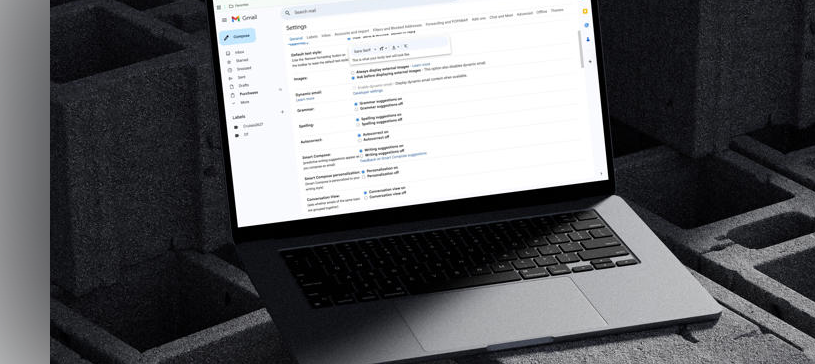
The easiest way to prevent marketers from tracking when and where you open emails is to enable Gmail's "Ask Before Displaying External Images" feature. When enabled, Gmail won't automatically load images, which blocks the tiny tracking pixels often hidden in marketing emails. This simple change can protect your privacy and reduce the risk of potential malware from unknown senders.
Image tracking pixels are invisible 1x1 images in emails, sites, or ads that, when loaded, ping a server to log user data. This includes information such as a user's IP address, device, location, and time, enabling marketers to track opens, views, conversions, and behavior. This often raises privacy concerns, which are mitigated by blocking images or using ad blockers.
After activating the "Ask Before Displaying External Images" setting, Gmail will no longer load images automatically. Instead, you'll see a "Display images below" prompt within each email, letting you choose which ones to view. This gives you more control and helps keep unwanted tracking pixels from slipping through.
To enable the new setting, open Gmail in a web browser, select the Settings icon at the top-right, then click Show all settings. Scroll down to the Images section and toggle on Ask before displaying external images. Select Save Changes at the bottom of the screen.
The main limitation
Gmail's "Ask Before Displaying External Images" setting only applies to Gmail on the web and in Gmail's iOS and Android apps, not to third-party clients.
"Auto-delete" your emails
Here's another valuable tool to try
There are several other ways you can better protect the data in your Gmail account, starting with a few proactive privacy settings.
Start by reviewing Gmail's data retention and activity settings. Google's My Activity and Data & Privacy tools let you view, manage, and personalize data collected across its services. If you don't need them, you can disable the Web & App Activity setting and location tracking. You can also enable automatic deletion for older emails and activity logs.
To adjust these settings, visit the Activity Controls page in your Google account. Once signed in, toggle off Web & App Activity and Location History as needed. On the same page, you can also set your data to auto-delete every 3, 18, or 36 months instead of being stored indefinitely.
Keep in mind that Gmail doesn’t include a built-in option to delete old emails automatically. However, you can create a simple filter to do this, or use a third-party cleanup tool.
To create a filter that deletes emails older than two years:
1. In Gmail on the web, open the search bar and select Show search options.
2. In the Has the words field, type `older_than:2y`, then choose Create filter.
3. Check Delete it, and confirm by selecting Create filter again.
Once the filter is active, emails older than two years will automatically move to Trash and be permanently deleted after 30 days.
Reduce ad personalization
And another tool to consider
It's also helpful to disable Gmail's ad personalization. When you do, marketers have less information about you.
To get started, open My Ad Center in Google while signed in to your account. Toggle Personalized ads to Off and confirm. Once completed, Google can no longer use your info, activity, and preferences across several services, including YouTube, Search, and Maps.
If you still want to see ads but want to adjust them, you can make changes in My Ad Center. From here, go to Customize Ads to adjust topics or brands shown, or to limit sensitive content such as gambling and alcohol.
Take these steps for more data security
Gmail remains the world's top email service because it offers user-friendly features and intelligent tools, yet users still worry about their privacy. Google previously scanned personal email content for advertising purposes, but it has stopped this practice. However, it continues to track user behavior through email opens and device usage records. The tracking system improves spam detection and suggestion functionality, but could also harm user privacy.
Users who want to continue using Gmail but need to limit their data exposure can adjust their privacy settings. The first step to maximize effectiveness should be to enable the “Ask Before Displaying External Images” feature, which blocks tracking pixels used by marketers to record device information and location data. Users should take additional steps to protect their data: use Google My Activity to disable Web & App Activity and Location History, and enable automatic data deletion schedules. Disabling ad personalization in My Ad Center reduces how personal data is used to target advertisements delivered through Google's services.

You must be logged in to post a comment.